Countdown and Count up
The countdown and count up datasources allow you to display time relative to a specific date and time. You can either count down to a future moment or count up from a past event. This is commonly used for countdowns to events, deadlines, or tracking time since something occurred.

How it works
The datasource calculates the difference between the current time and a defined date:
- Countdown: Counts down to a specified future date and time.
- Count up: Counts up from a specified past date.
When using a countdown, you can also define a trigger that activates once the timer reaches zero, which makes them useful for automation scenarios.
Triggers in Smartsign 11 is under development and currently not available.
Requirements
- A valid date and/or time must be configured.
- (Optional) A trigger must be created if you want to perform an action when a countdown completes.
Set up the Datasource
- Create a new datasource and select Countdown or Count up.
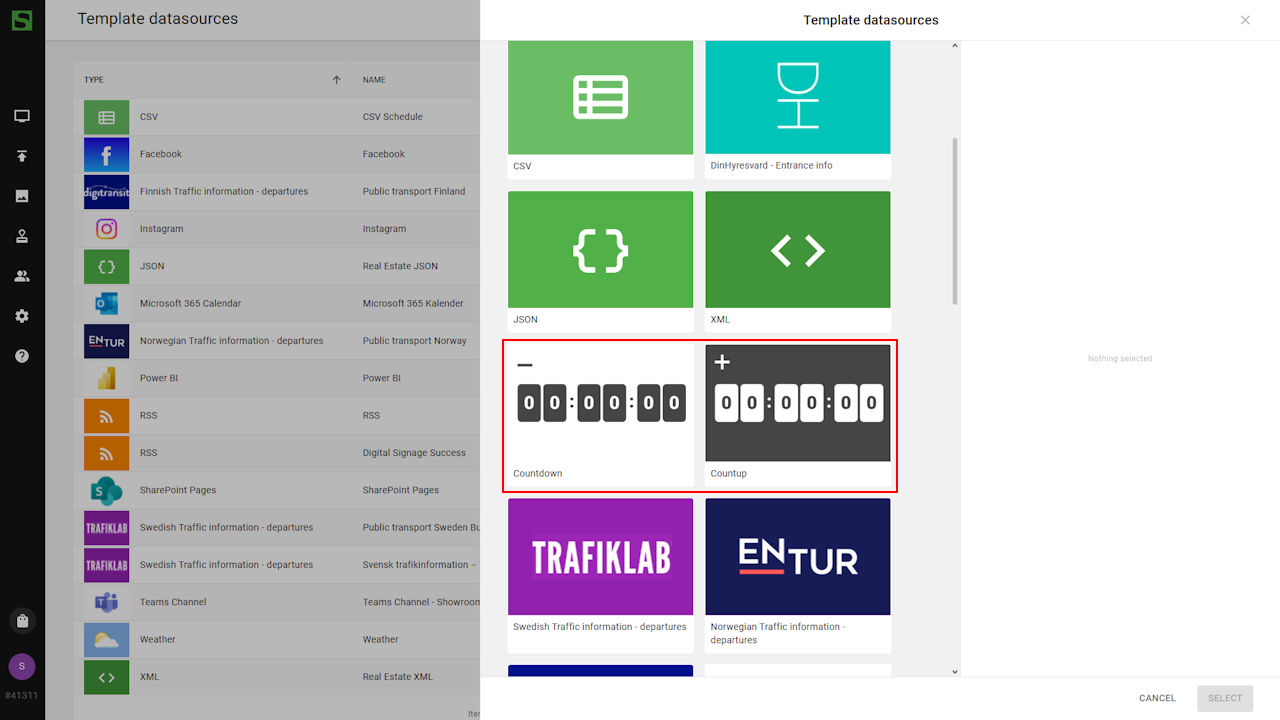
- In this example we will set up a countdown datasource.
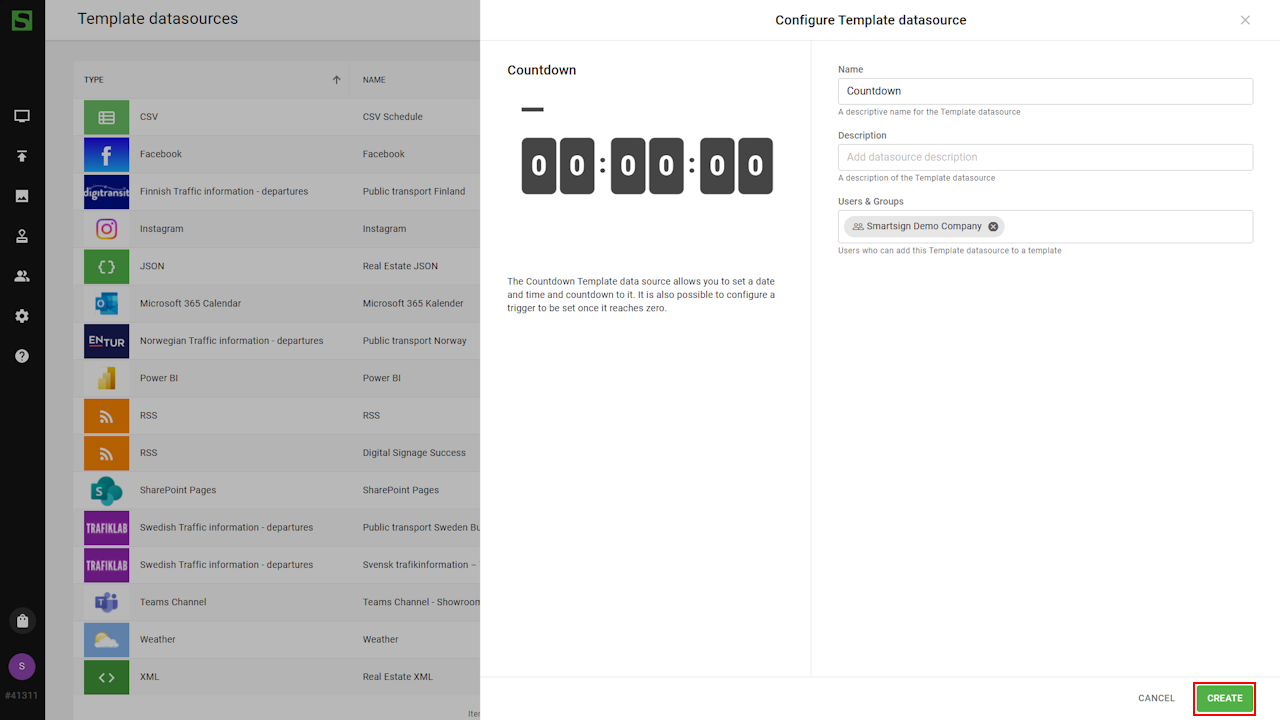
- The datasource is now ready to use in a template.
Example Data
Countdown example:
- Target date: 2026-12-31 23:59 - Displays remaining time until New Year
Count up example:
- Start date: 2026-01-01 - Displays time elapsed since that date
Identifying data bindings
The datasource provides calculated time values that can be used in templates:
- Countdown – Days
- Countdown – Hours
- Countdown – Minutes
- Countdown – Seconds
- Countdown – Target text (displayed when countdown reaches zero)
- Count up - Days
Create template
Countdown
We will now create a vacation countdown template from scratch to show on the screens.
- Go to Templates and create a new template.
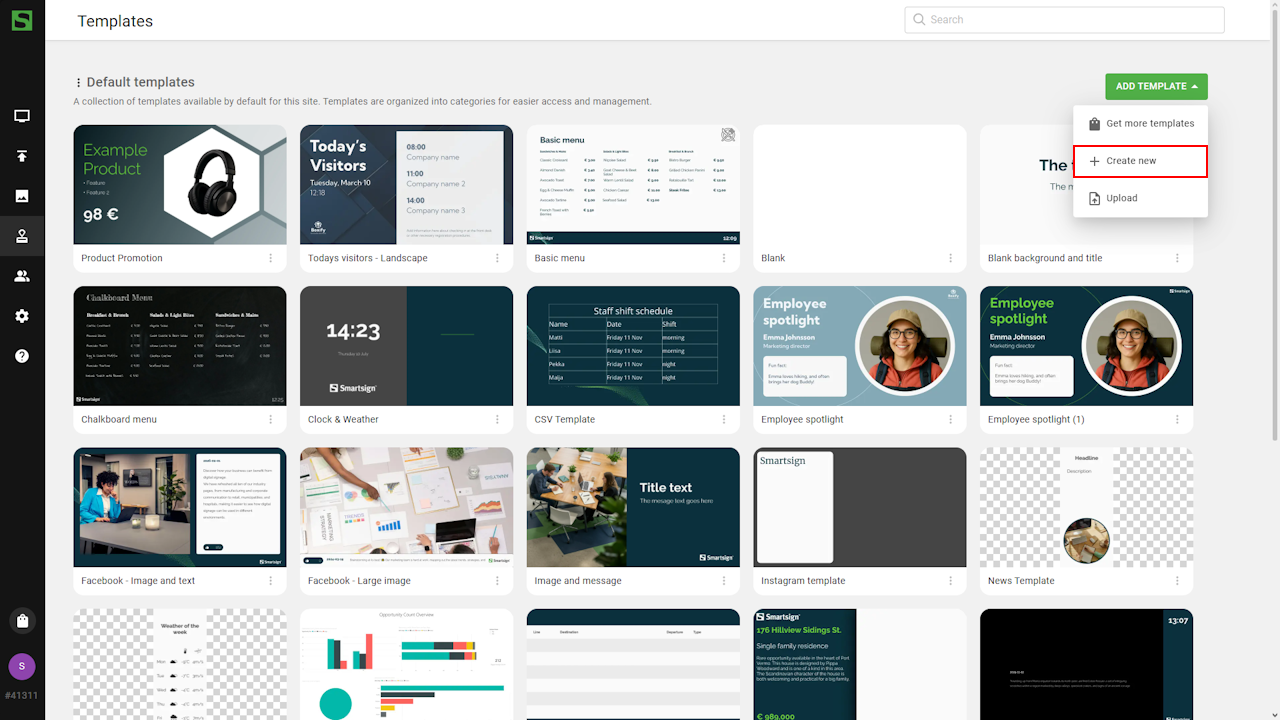
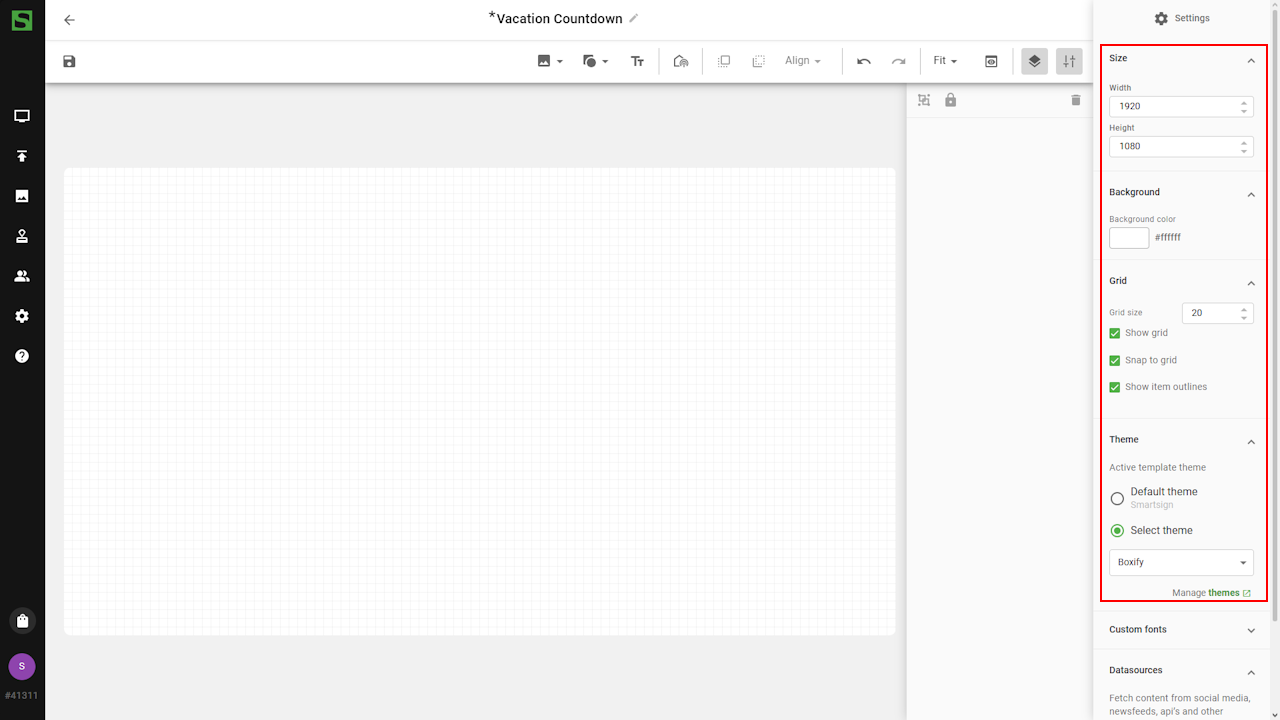
- Adjust template settings like size, grid settings and theme.
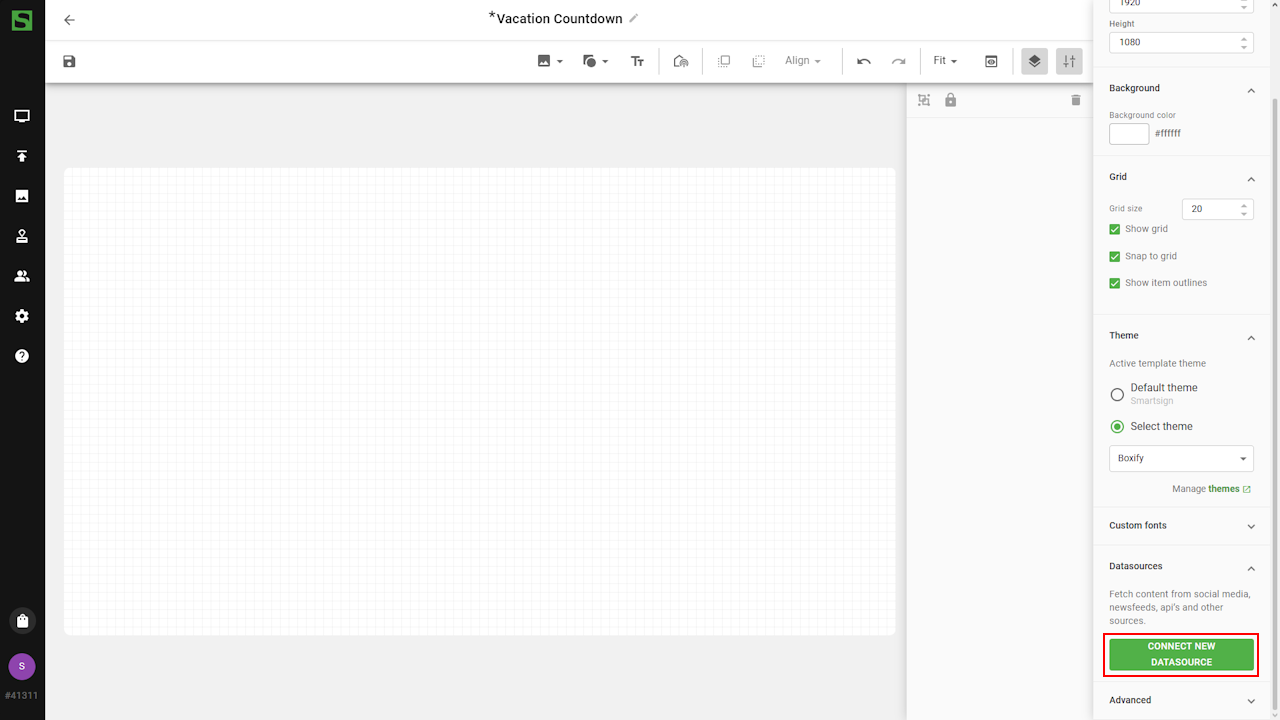
- Go to Datasource tab and connect the countdown datasource.
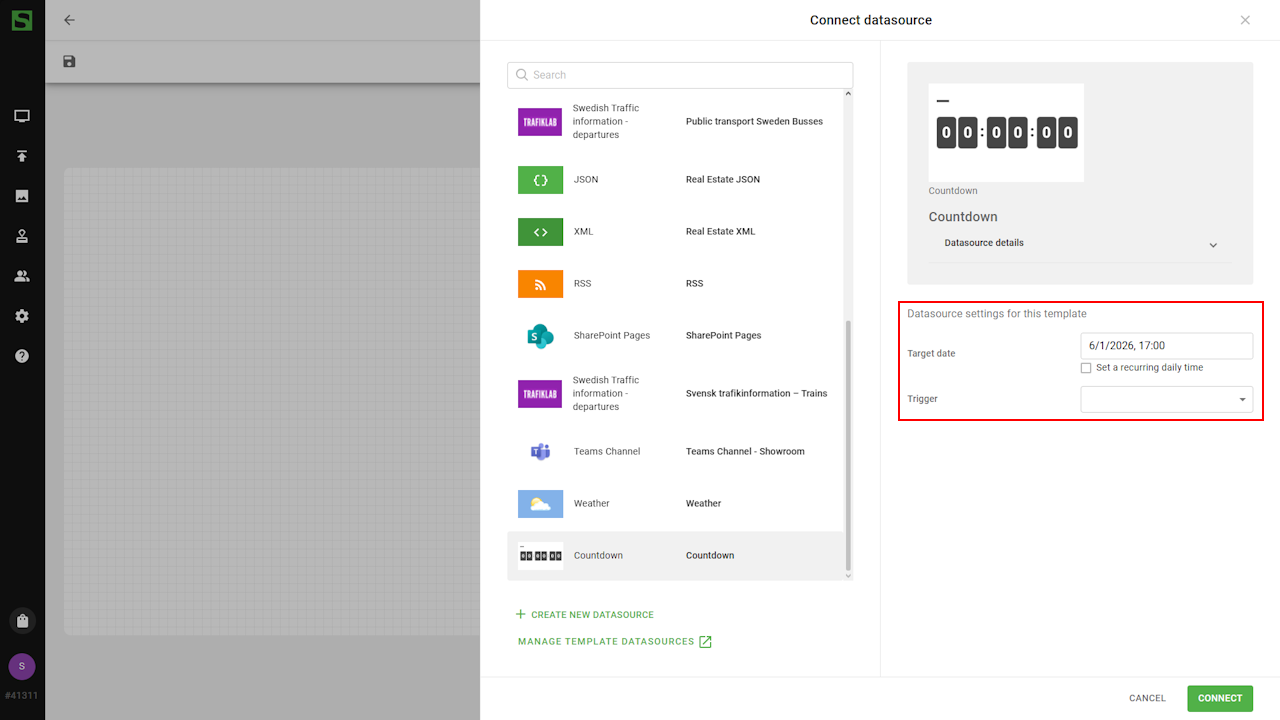
- Select the target date for the countdown.
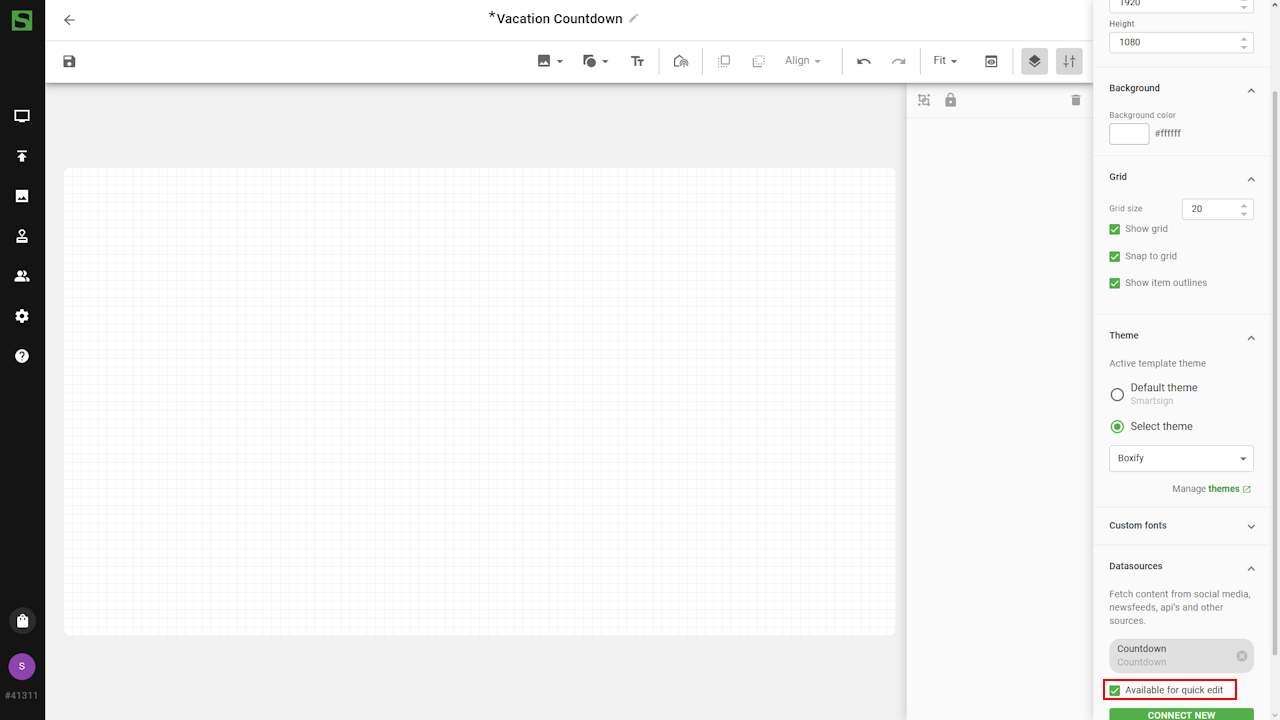
- Enable Quick Edit to easily change target date when publishing
the Smart Media.
- You can now add components to the template and bind to the datasource.
- Countdown - Days
- Add a textbox and select the binding.
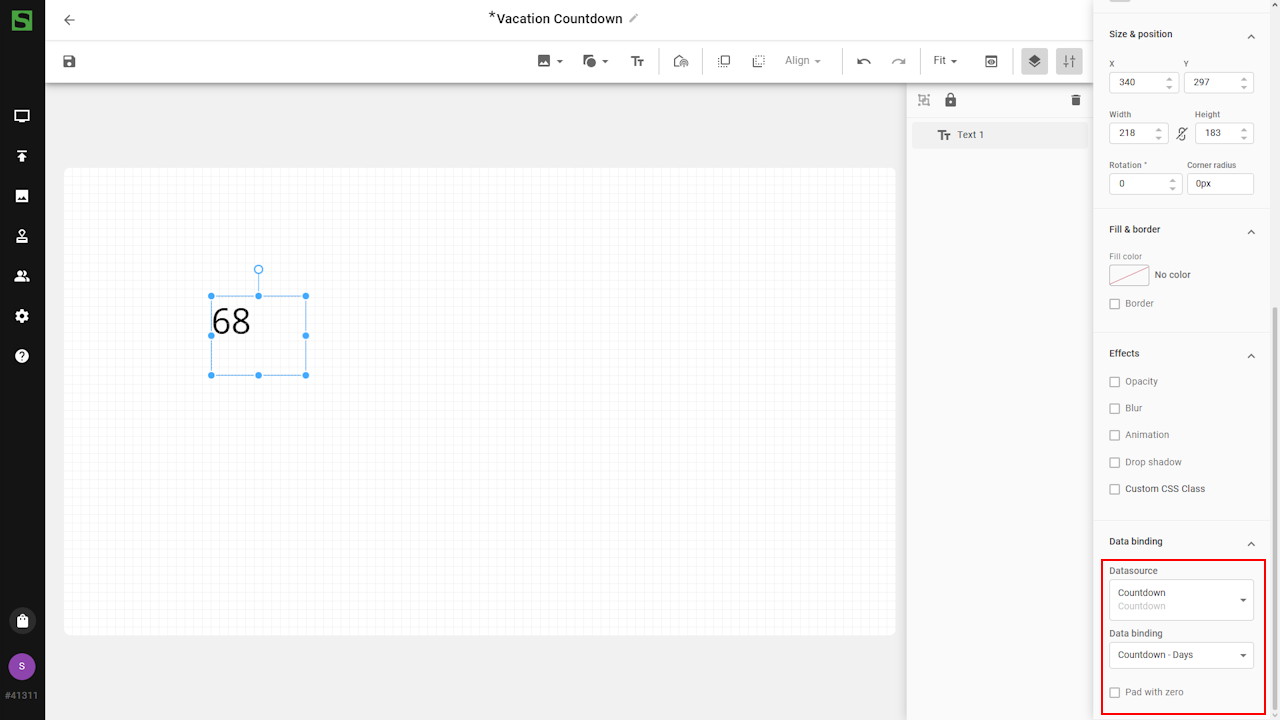
- Adjust size, style and font settings for the textbox.
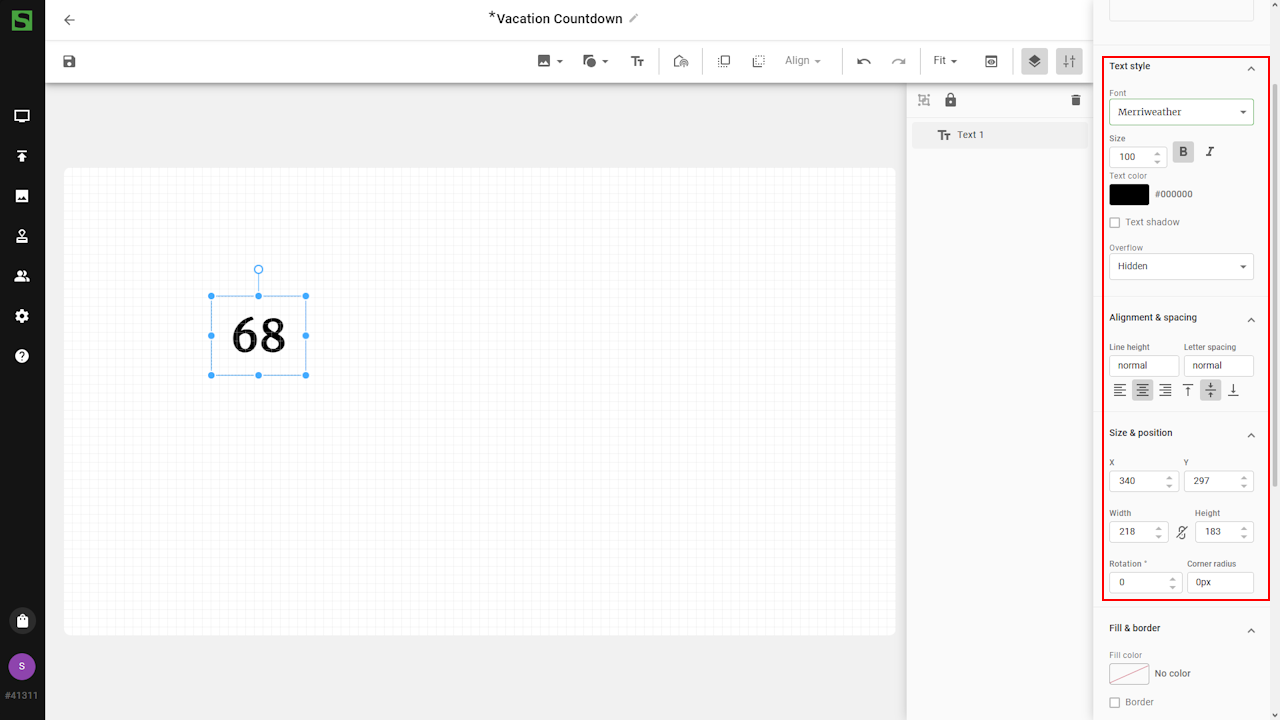
- Add a textbox and select the binding.
- Use copy-paste to create additional text boxes with same settings
and select different bindings.
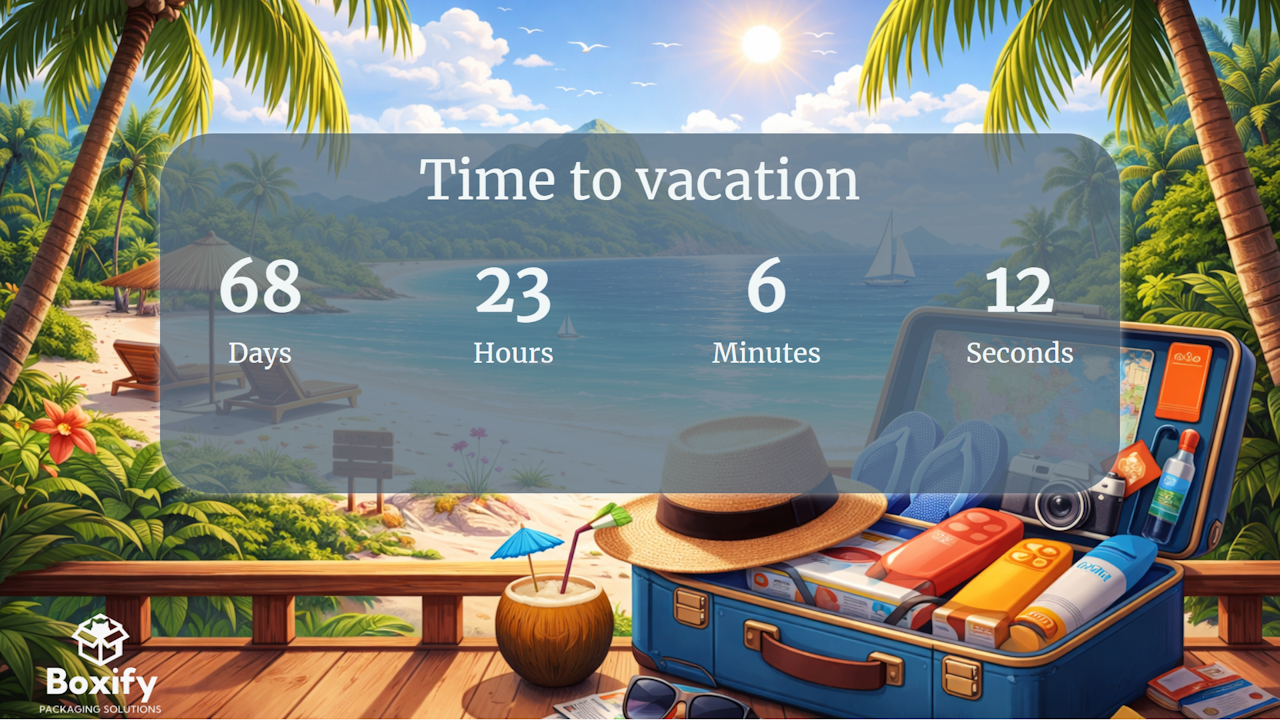
Note: Text boxes use placeholder text during configuration. Use Preview to see the actual countdown.- Countdown - Hours
- Countdown - Minutes
- Countdown - Seconds
- Countdown - Target text - Hidden message that will show when
countdown is finished.
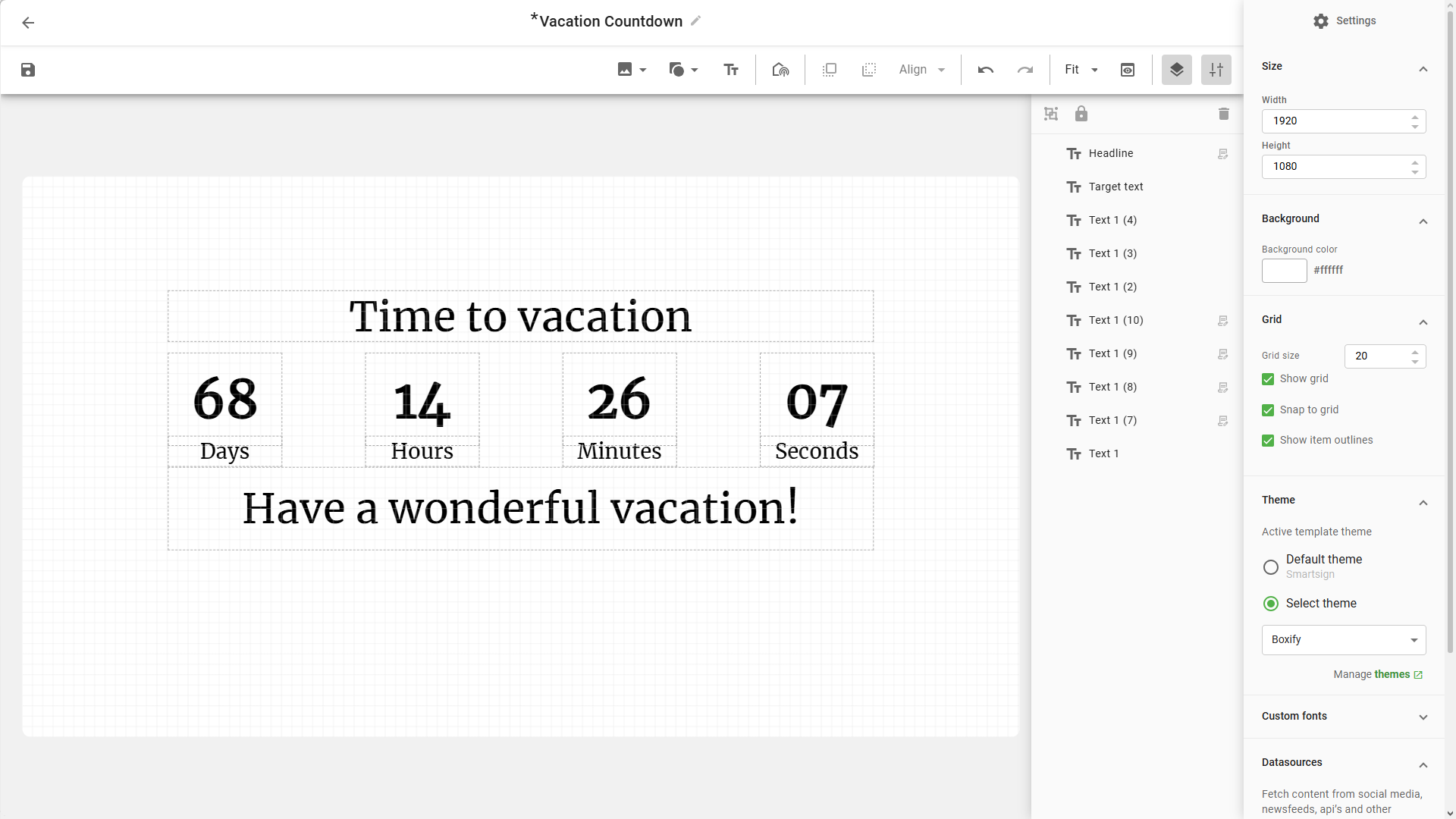
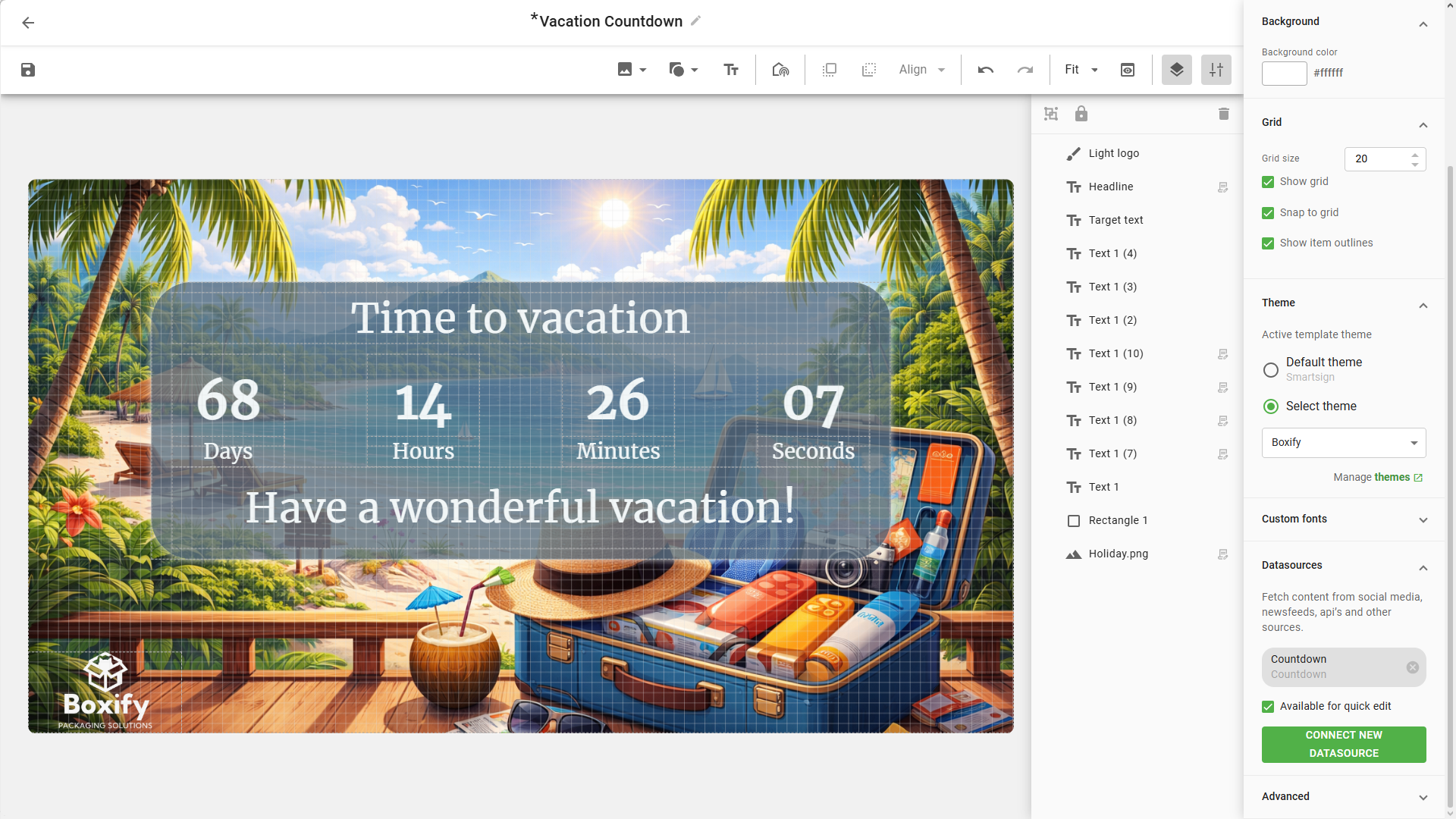
- When the datasource is connected to the placeholders, you can add
design elements to achieve the desired look and feel.
Count up
If you want to use a count up template instead, just change
the datasource and adjust the components in the template accordingly.
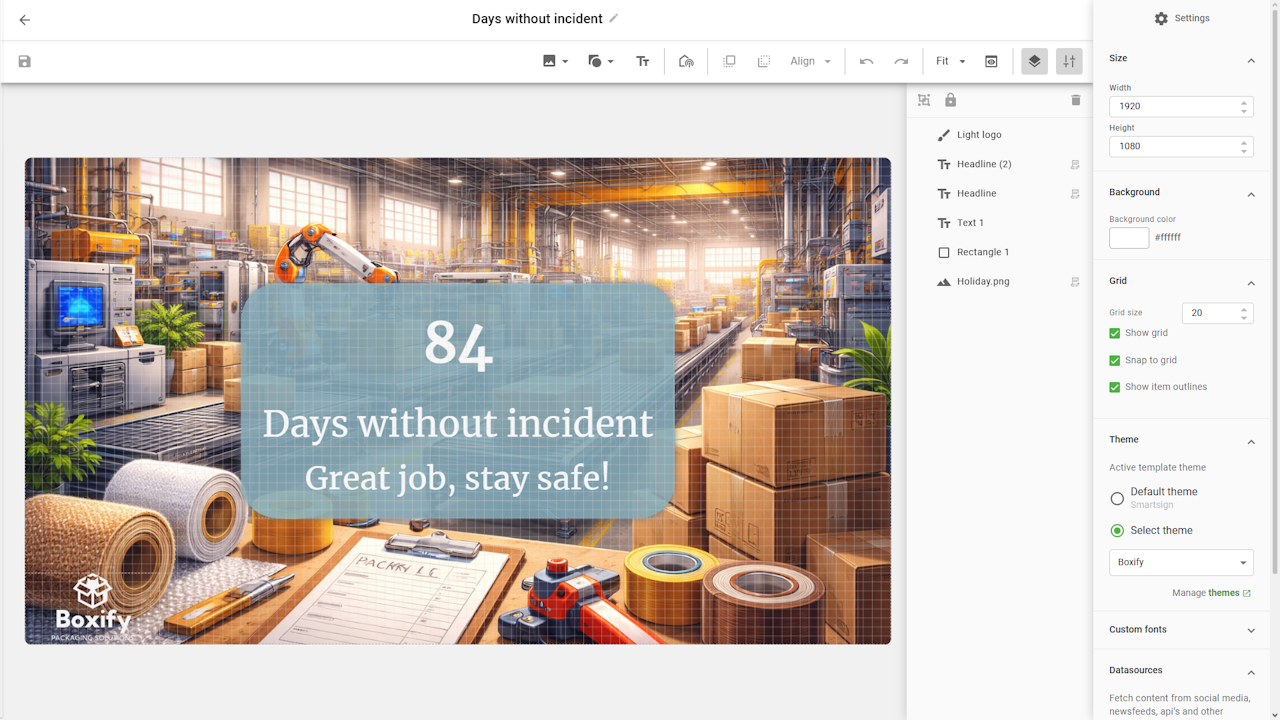

When templates have been created, you can use them to create Smart Media to publish on your screens.
Technical information
- Supports both fixed dates and recurring daily times (countdown only).
- Time calculation is based on the player/screen time.
- Countdown can be configured to trigger actions when reaching zero (feature currently under development in Smartsign 11).
Datasource configuration options
Countdown
| Setting | Description | Example |
| Target date | The target date and time that should be counted down to. | 2026-04-30 10:00 |
| Recurring daily time | Use countdown to a specific time every day | 14:00 or 2:00 PM |
| Trigger on countdown | Select which trigger to affect once the countdown completes | MyTrigger |
| Action on trigger | Select what to do with the trigger | Activate |
Count up
| Setting | Description | Example |
| Start date | The start date that should be counted up from. | 2026-04-30 |